
Organize and manage batch workflows
The Photomator workflow library is fully customizable. You can rename, remove, duplicate, reset workflows, or rearrange their order.
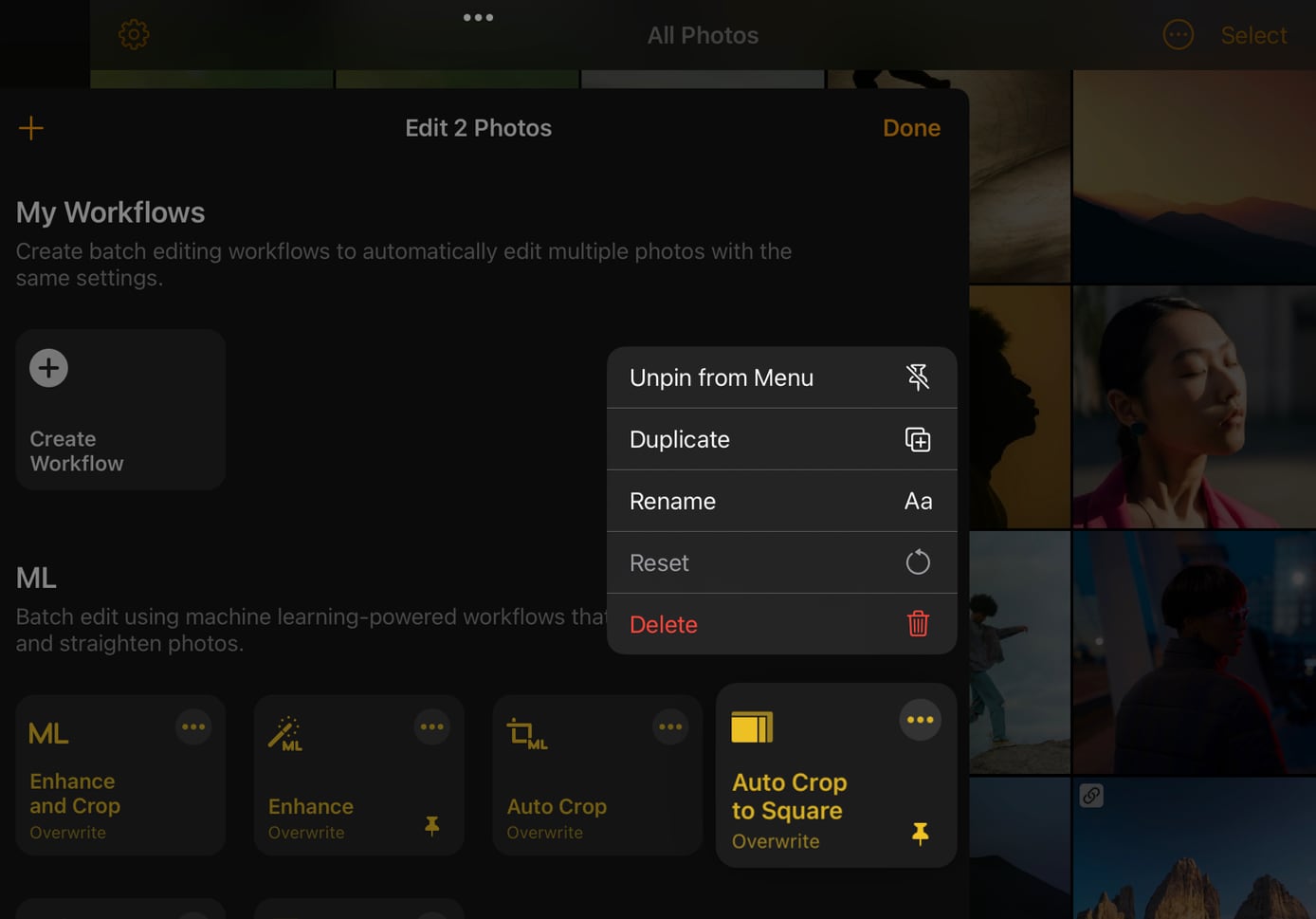
Pin a workflow to the quick actions menu#
Pinned workflows show up in the quick actions menu when you select photos and choose to process them. It's a faster way to access the workflows you use most frequently.
- In the Photos or Files browser, find the photos you'd like the edit.
- Tap Select in the top-right corner of the screen. If you're working in the Files browser using Portrait orientation, tap More
 to find the Select option.
 - Select the photos you’d like to edit.
- In Photos, tap Edit Images at the bottom of the screen. In Files, tap Edit at the top of the screen.
- Tap More Workflows.
- Touch and hold a workflow and tap Pin in Menu.
- In the Photos or the Files browser, navigate to a folder with the photos you'll be editing.
- Click and drag in the browser to select the photos.
- Do one of the following:
- Control-click the photos and choose Workflows
- Click Edit Photos at the top of the screen
- Choose Image > Workflows from the menu at the top
- Click More Workflows.
- In the workflow list on the left,
Control ⌃-click a workflow, then click Pin in Menu.
Duplicate a workflow#
In the workflows browser, touch and hold or Control-click a workflow you'd like to duplicate and choose Duplicate.
Rename a workflow#
In the workflows browser, touch and hold or Control-click a workflow you'd like to rename and choose Rename.
Remove a workflow#
In the workflows browser, touch and hold or Control-click a workflow you'd like to remove and choose Delete.
Reset a workflow#
If you have modified any of the workflows that come with Photomator, you can also reset them to default.
In the workflows browser, do any of the following:
- Touch and hold a workflow, then tap Reset.
- Tap More to open the workflow settings and tap Reset
 at the top.
In the workflows browser, Control ⌃-click a workflow, then click Reset.
Rearrange workflows on iPhone and iPad#
You can change the order in which workflows appear or move them to a different category on iPhone and iPad.
In the workflows browser, touch and hold the workflow you want to move, then simply drag it to a desired position or category.